Best PDF to Word Converters in 2026 (Free vs Paid)
You need to edit a contract, update a resume, or pull data from a report — but the file is locked inside a PDF. The obvious solution is a PDF-to-Word converter, yet the quality gap between tools is enormous. A poor converter will scramble your tables, strip your fonts, and turn a clean two-column layout into an unreadable mess. A good one preserves headings, paragraphs, images, and even footnotes so you can start editing immediately.
Formatting preservation is the single biggest differentiator. Scanned documents add another layer of complexity because they require OCR (optical character recognition) to extract text from images. And the free vs paid question matters more than ever: some freemium converters impose tight daily limits, file-size caps, or watermarks that make them impractical for regular use, while others deliver surprisingly strong results at no cost.
This article compares six of the most widely used PDF to Word conversion tools in 2026 and helps you decide which one fits your workflow and budget.
Best PDF to Word Converters in 2026
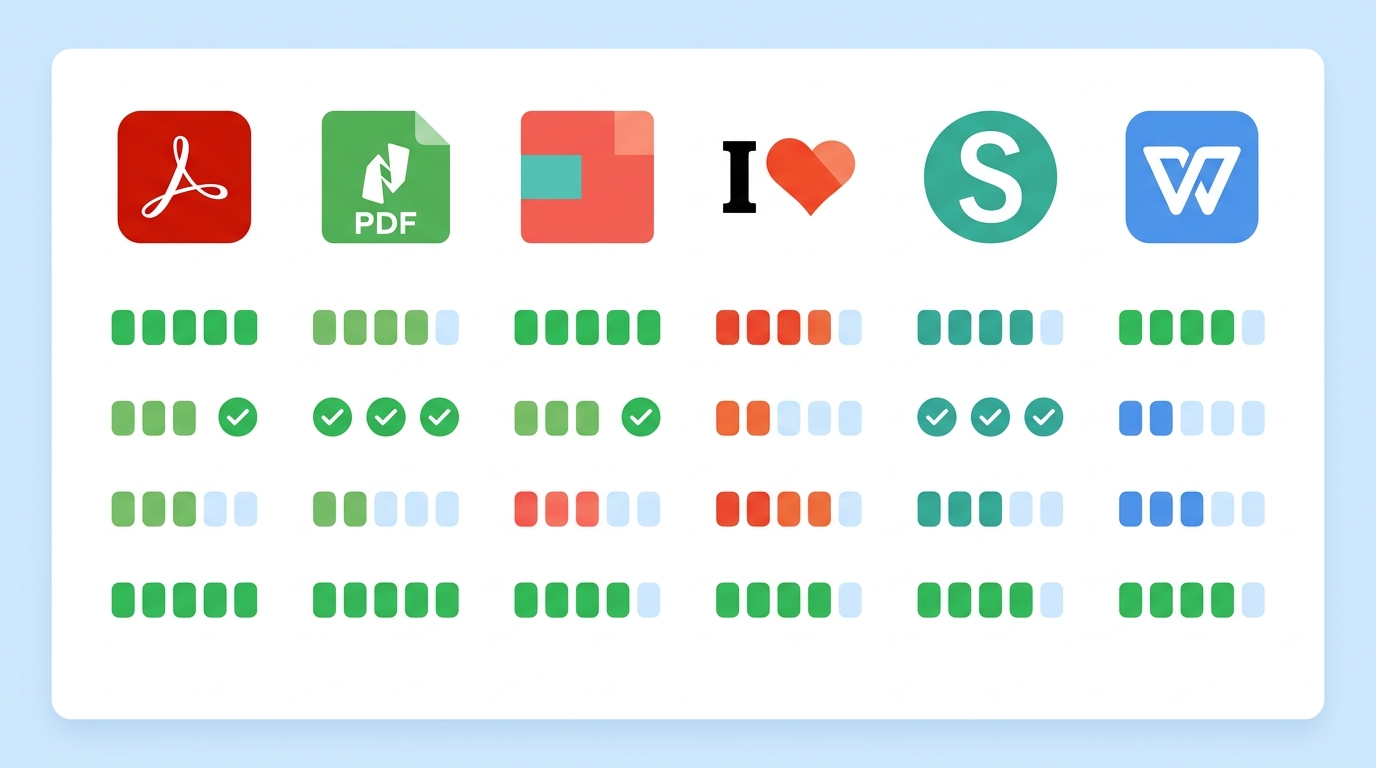
After evaluating each tool on conversion accuracy, formatting preservation, OCR capability, speed, file limits, platform support, and value for money, here is how the six converters stack up:
- Best Overall: Adobe Acrobat — the most accurate conversion engine with excellent OCR across the widest range of document types.
- Best Free Option: iLovePDF — generous free access to core conversion tools with a clean, intuitive interface.
- Best for Professionals: Nitro PDF — deep integration with business workflows, strong batch processing, and a polished desktop experience.
- Best for OCR: Adobe Acrobat — the most reliable OCR engine for scanned documents, multi-language support, and complex layouts.
- Best for Occasional Users: Sejda — a straightforward browser-based tool with reasonable free limits and no account required.
- Best for Office Productivity: WPS Office — a full office suite with built-in PDF conversion, ideal for users who want document editing and conversion in one application.
These recommendations are based on practical testing and verified product information as of August 2026. The sections below explain the reasoning behind each.
Quick Comparison of the Best PDF to Word Converters
| Converter | Best For | Free Option | Paid Price | OCR | Accuracy | File Limits (Free) | Platforms |
|---|---|---|---|---|---|---|---|
| Adobe Acrobat | Overall quality | Limited online tool | From ~$14.99/mo | Yes (advanced) | Excellent | Basic online conversions | Windows, macOS, Web, iOS, Android |
| Nitro PDF | Professional workflows | 14-day trial only | From ~$15/mo | Yes (advanced) | Very Good | Trial period only | Windows, macOS (limited), Web |
| Smallpdf | Quick browser conversions | 2 tasks/day | From ~$12/mo (annual) | Yes (Pro only) | Good | 2 tasks/day | Web, Desktop, iOS, Android |
| iLovePDF | Budget-conscious users | Yes (limited processing) | From ~$5/mo (annual) | Premium only | Good | File-size dependent | Web, Desktop, iOS, Android |
| Sejda | Occasional one-off tasks | 3 tasks/hour, 200 pages | From ~$63/year | Yes (limited free) | Good | 50 MB / 200 pages | Web, Desktop (paid) |
| WPS Office | All-in-one productivity | Yes (5-page limit) | From ~$29.99/year | Yes (Premium) | Good | 5 pages per conversion | Windows, macOS, Linux, iOS, Android |
Pricing reflects publicly available rates as of mid-2026 and may vary by region, promotion, or billing cycle. Always verify on the official website before purchasing.
Evaluation Methodology
Rather than assigning arbitrary scores, this comparison weights the following factors based on what matters most during real document conversion:
| Factor | Weight | Why It Matters |
|---|---|---|
| Accuracy & formatting | 30% | The core purpose of any converter |
| OCR quality | 20% | Essential for scanned PDFs |
| Ease of use | 15% | Reduces friction for all skill levels |
| Speed | 10% | Matters for large files and batch jobs |
| File limits | 10% | Determines practical free-tier usability |
| Platform support | 5% | Cross-device flexibility |
| Features | 5% | Batch processing, security, integrations |
| Value for money | 5% | Cost relative to capability |
No tool receives a numerical score. Instead, each section explains strengths, weaknesses, and the specific audience each converter serves best.
1. Adobe Acrobat
Adobe created the PDF format in the early 1990s, and Acrobat remains the most feature-complete PDF application available. Its conversion engine handles text-based and scanned PDFs with consistently high accuracy.
PDF-to-Word workflow: Open a PDF in Acrobat (desktop) or upload it to the Adobe online converter, select “Export PDF,” choose Microsoft Word as the output format, and download the DOCX file. The desktop version supports batch conversion for multiple files at once.
Accuracy and formatting: Adobe’s conversion engine is the benchmark other tools are measured against. It preserves tables, multi-column layouts, headers, footers, embedded images, and unusual fonts better than any competitor tested. Complex documents with charts and form fields convert with minimal manual cleanup.
OCR: Acrobat Pro includes one of the strongest OCR engines available, supporting dozens of languages. It reliably extracts text from scanned contracts, academic papers, and government forms — even when the scan quality is mediocre.
Speed: Conversion speed depends on file complexity. Simple text PDFs convert in seconds. Large scanned documents requiring OCR take longer, but Acrobat is still faster than most browser-based alternatives for heavy files.
Platforms: Windows, macOS, Web (limited free online tool), iOS, Android.
Pricing: Adobe offers a free online converter with basic functionality. For full features, Acrobat Standard starts at approximately $14.99/month, Acrobat Pro at ~$19.99/month, and the newer Acrobat Studio at ~$24.99/month. All prices assume an annual commitment billed monthly. Business and team plans are also available at higher per-seat rates.
Advantages:
- Industry-leading conversion accuracy
- Best-in-class OCR for scanned documents
- Deep integration with the Adobe document management ecosystem
- Batch conversion on desktop
- Regular updates and broad platform support
Disadvantages:
- The subscription cost is the highest among the tools reviewed here
- The free online tool is limited in functionality and nudges users toward paid plans
- The desktop application can feel bloated for users who only need conversion
- Annual commitments may carry cancellation fees
Best for: Professionals, legal teams, and enterprise users who need the highest accuracy and work with complex or scanned documents regularly.
2. Nitro PDF
Nitro PDF Pro targets the professional document workflow space, positioning itself as a more affordable alternative to Adobe Acrobat with a familiar ribbon-style interface similar to Microsoft Office applications.
PDF-to-Word workflow: Open a PDF in Nitro PDF Pro, click “Convert” and select “To Word.” The software processes the file locally on your machine. As of version 26, Nitro includes AI-powered Smart Tools for tasks like automated form extraction and intelligent redaction.
Accuracy and formatting: Nitro handles standard business documents — contracts, reports, invoices, letters — with strong accuracy. Tables and basic layouts convert cleanly. However, highly complex documents with unusual formatting or embedded vector graphics may require minor post-conversion adjustments.
OCR: The v26 OCR engine supports an expanded set of languages, including Arabic and Hebrew. OCR accuracy is strong for clear scans and printed documents, though handwritten text remains challenging (as it is for all tools).
Speed: Desktop processing is fast because files are handled locally rather than uploaded to a server. Batch conversion is efficient for processing multiple documents in sequence.
Platforms: Primarily Windows. Limited macOS and web functionality is available, but the core product is a Windows desktop application.
Pricing: Nitro has shifted to a subscription model. Nitro PDF Standard costs approximately $15/month per user (billed annually at ~$180/year). A fixed-term 3-year “Classic” license is available for users who prefer avoiding monthly recurring payments. Enterprise pricing requires contacting sales. A 14-day free trial is available, but there is no permanent free tier.
Advantages:
- Familiar Office-style interface reduces the learning curve
- Strong batch processing for professional workflows
- Competitive pricing compared to Adobe
- Good OCR with broad language support
- AI-powered features in the latest version
Disadvantages:
- No permanent free tier — only a 14-day trial
- Best experience limited to Windows
- Older perpetual licenses are being phased out (ending December 2026)
- Less suitable for casual or infrequent users
Best for: Windows-based business teams and professionals who process documents daily and want a capable alternative to Adobe Acrobat at a lower price point.
3. Smallpdf
Smallpdf is a browser-first document conversion service used by millions of people worldwide. It prioritizes simplicity: upload a file, convert it, and download the result. No installation required.
PDF-to-Word workflow: Navigate to the Smallpdf PDF to Word tool in your browser, drag and drop a PDF, wait a few seconds, and download the converted DOCX file. The entire process happens in the browser window.
Accuracy and formatting: Smallpdf handles straightforward documents well — single-column text, basic tables, and standard formatting convert reliably. Complex multi-column layouts or PDFs with embedded charts may lose some structural accuracy.
OCR: Available exclusively on the Pro plan. Free users cannot process scanned PDFs through OCR. The Pro OCR handles common languages and typical scanned documents adequately, though it doesn’t match Adobe’s accuracy on complex scans.
Speed: Browser-based conversion is fast for small to medium files. Large PDFs (50+ pages) take noticeably longer because the file must be uploaded to Smallpdf’s servers for processing.
File limits (free): The most significant restriction is the 2-task-per-day limit, which resets based on Central European Time. This makes the free tier impractical for anyone who converts more than a couple of documents per day.
Platforms: Web (primary), Desktop app, iOS, Android.
Pricing: The free plan allows 2 tasks per day across all tools. Smallpdf Pro costs approximately $12/month billed annually or $15/month billed monthly. Team plans start at around $8–12 per user per month. A 7-day free trial of Pro is available.
Advantages:
- Extremely easy to use — no learning curve
- Works in any modern browser on any device
- Clean, well-designed interface
- Suite of 40+ PDF tools beyond just conversion
- Mobile apps available
Disadvantages:
- 2-task-per-day free limit is very restrictive
- OCR requires a paid subscription
- Files are uploaded to Smallpdf’s servers (privacy consideration for sensitive documents)
- Complex layouts don’t always convert perfectly
Best for: Occasional users who need a quick, no-install PDF-to-DOCX conversion and don’t mind the daily task cap. Students and freelancers who convert files infrequently will find it convenient.
4. iLovePDF
iLovePDF is a popular online document conversion service that competes directly with Smallpdf but offers a more generous free tier. Its interface is clean and straightforward, and it covers a wide range of PDF tools beyond conversion.
PDF-to-Word workflow: Visit the iLovePDF PDF to Word page, upload your file (or import from Google Drive / Dropbox), click “Convert to Word,” and download the DOCX. The workflow is virtually identical to Smallpdf.
Accuracy and formatting: For standard business documents and simple layouts, conversion quality is good. Text, basic tables, and images transfer cleanly. Multi-column PDFs and documents with complex formatting may lose some structural accuracy, similar to other browser-based tools.
OCR: Available only on the Premium plan. Free users are limited to text-based PDFs. The Premium OCR handles standard scanned documents but isn’t as robust as Adobe or Nitro for challenging scans.
Speed: Processing speed is comparable to Smallpdf — fast for small files, slower for larger documents. Files are processed on iLovePDF’s servers.
File limits (free): iLovePDF’s free plan allows access to most tools with usage restrictions on document processing volume and file-size caps that vary by tool (for example, approximately 200 MB for compression, 100 MB for splitting). The free experience is ad-supported.
Platforms: Web, Desktop (Windows, macOS), iOS, Android.
Pricing: iLovePDF Premium costs approximately $5/month when billed annually ($9/month billed monthly). This makes it one of the most affordable paid options. A Business plan for teams of 25+ includes custom pricing, SSO, and a dedicated account manager. Students and educators may qualify for a free year of Premium.
Advantages:
- Very affordable Premium plan at ~$5/month (annual)
- More generous free tier than Smallpdf
- Clean, intuitive interface
- Available across web, desktop, and mobile
- Student/educator discount program
- Wide range of additional PDF tools (merge, split, compress, etc.)
Disadvantages:
- OCR locked behind the Premium paywall
- Free version is ad-supported
- Files are uploaded to servers — not ideal for confidential documents
- Formatting accuracy doesn’t match desktop applications like Adobe or Nitro
Best for: Budget-conscious users, students, and small teams who need regular access to PDF conversion without paying Adobe or Nitro prices. The student program makes it especially attractive for academic use.
5. Sejda
Sejda takes a different approach to pricing: instead of requiring a monthly subscription, it offers a per-week pass alongside traditional plans. This makes it appealing for people who have a one-time batch of documents to process.
PDF-to-Word workflow: Open the Sejda PDF to Word tool in your browser, upload a file, and download the converted document. No account is required for free usage. A desktop application is also available for paid subscribers.
Accuracy and formatting: Conversion quality is solid for simple to moderately complex documents. Sejda handles text extraction well and preserves basic formatting. Tables and multi-column layouts are handled reasonably, though not as well as Adobe or Nitro.
OCR: Available in both free and paid tiers, though the free version caps OCR at approximately 10 pages per task. Paid plans remove this restriction.
File limits (free): Free usage is limited to 3 tasks per hour, files up to 200 pages or 50 MB, and one file per task. These limits are tied to your IP address rather than an account.
Speed: Comparable to other browser-based tools for small files. The lack of an account requirement means you can start converting immediately without signup friction.
Platforms: Web (free), Desktop application (paid only — Windows, macOS, Linux).
Pricing: Sejda’s pricing structure is unique. A Web Week Pass costs approximately $5–7.50 for 7 days of unlimited access with no auto-renewal. Annual plans run approximately $63/year for web-only or $89/year for web + desktop. There is no traditional monthly subscription.
Advantages:
- No account required for free usage
- Unique week-pass pricing for one-time projects
- Free OCR (limited to 10 pages)
- Files automatically deleted from servers after 2 hours
- Desktop app available for Linux in addition to Windows and macOS
- Transparent, no-auto-renewal pricing options
Disadvantages:
- 3-tasks-per-hour free limit can be frustrating for batch work
- Desktop application requires a paid plan
- Interface is functional but less polished than Smallpdf or iLovePDF
- No mobile app
Best for: Users with occasional or one-time conversion needs who don’t want to create accounts or commit to subscriptions. The week pass is ideal for short-term projects like thesis submission or contract review.
6. WPS Office
WPS Office takes a fundamentally different approach by embedding PDF conversion inside a full office productivity suite. Rather than being a standalone conversion tool, it’s part of a broader document management ecosystem that includes word processing, spreadsheets, and presentations.
PDF-to-Word workflow: Open a PDF file in the WPS PDF viewer, select “Convert” from the toolbar, choose Word as the output format, and save the file. Because WPS includes a Word-compatible editor, you can convert and edit without switching applications.
Accuracy and formatting: For simple documents, conversion quality is adequate. WPS handles basic text and formatting well. However, complex layouts, embedded charts, and unusual fonts may not convert as accurately as dedicated conversion tools.
OCR: Available in WPS Premium. The free version does not include OCR, and free PDF-to-Word conversion is limited to approximately 5 pages per file.
Platform support: This is WPS Office’s strongest advantage. It runs on Windows, macOS, Linux, iOS, and Android — broader platform coverage than any other tool on this list.
Pricing: WPS Standard (free) includes basic PDF reading and limited conversion (5 pages). WPS Premium costs approximately $29.99/year and unlocks unrestricted file conversion, advanced editing, and OCR. Higher-tier WPS Pro/AI plans range from ~$5.99/month to ~$21.99/month and include AI features and expanded cloud storage.
Advantages:
- Full office productivity suite — not just a converter
- Broadest platform support (including Linux)
- Affordable Premium plan at ~$30/year
- No need to switch between separate applications
- Familiar Office-style interface
Disadvantages:
- Free conversion limited to 5 pages — too restrictive for most use cases
- Conversion accuracy lags behind dedicated tools like Adobe and Nitro
- The suite’s large feature set can feel overwhelming for users who only need conversion
- Some PDF features are less refined than in purpose-built PDF software
Best for: Users who want an affordable, cross-platform office suite with built-in PDF conversion. Particularly strong for Linux users who have fewer productivity software options.
Free vs Paid PDF to Word Converters
✅ Basic conversions
✅ Quick access
⚠️ Daily limits
⚠️ No OCR
⚠️ File-size caps
✅ Advanced OCR
✅ Batch processing
✅ Large files
✅ Better accuracy
✅ Offline/desktop
The free vs paid decision depends on how often you convert documents, what types of PDFs you work with, and how much formatting accuracy matters.
Free Converters: Strengths and Limits
Free PDF conversion tools are genuinely useful for occasional tasks. If you convert a document once or twice a week and the PDFs contain simple text and basic formatting, a free tool will likely produce acceptable results.
What works well for free:
- Simple text-based PDFs with standard formatting
- Quick one-off conversions where minor formatting imperfections are acceptable
- Basic document extraction — pulling text from a PDF for reuse
- Users who can tolerate ads, daily task caps, or page limits
Where free tools fall short:
Most free converters impose restrictions that become painful with regular use. Smallpdf caps you at 2 tasks per day. Sejda allows 3 per hour. WPS Office limits free conversions to 5 pages. These aren’t marketing gimmicks — they’re hard limits that will interrupt your workflow.
Beyond usage caps, free tiers typically exclude OCR, meaning scanned PDFs won’t convert at all. Batch processing is rarely available. And because most free online tools upload your files to remote servers for processing, there are legitimate privacy considerations for contracts, medical records, financial statements, and other sensitive documents.
It is worth noting that “free” doesn’t always mean “unrestricted.” A tool can be free of charge while still imposing file-size limits, daily usage quotas, watermarks, or feature restrictions that make it impractical for anything beyond occasional use.
Paid Converters: What You Get
Paid plans remove the friction. They unlock unlimited conversions, larger file sizes, OCR for scanned documents, batch processing, and generally better conversion engines. For anyone who converts documents more than a few times per week, the productivity gain usually justifies the cost.
The price range is wide. iLovePDF Premium at ~$5/month (annual) is significantly cheaper than Adobe Acrobat Pro at ~$19.99/month. Whether the extra cost of Adobe is worth it depends on whether you need its superior OCR, batch processing, and formatting accuracy — or whether iLovePDF’s “good enough” conversion meets your needs.
The practical tradeoff: Paid tools save time and produce better output, but they add a recurring cost. For someone who converts 2–3 PDFs per month, a subscription isn’t cost-effective. For someone who converts documents daily, the subscription pays for itself in time savings.
Which PDF to Word Converter Is Best for You?
For occasional users
Sejda or iLovePDF (free tiers). Sejda requires no account and allows 3 tasks per hour. iLovePDF provides access to most tools with moderate usage limits. Either works well for the person who converts a PDF once every week or two.
For students
iLovePDF is the strongest choice. The ~$5/month Premium plan is affordable on a student budget, and the student program may grant a free year. For students who can’t pay at all, the free tier handles basic assignments and reports adequately.
For businesses
Adobe Acrobat Pro or Nitro PDF Pro. Businesses need consistent accuracy, batch processing, security features, and the ability to handle complex documents. Adobe is the safer choice for organizations that process diverse document types. Nitro is a solid alternative at a lower price point, especially for Windows-centric teams.
For scanned PDFs
Adobe Acrobat offers the most reliable OCR across the widest range of languages, scan qualities, and layout complexities. If your primary use case involves converting scanned contracts, medical records, or archival documents, Acrobat’s OCR is worth the premium.
For heavy professional use
Adobe Acrobat Pro or Nitro PDF Pro. Both support batch conversion, advanced OCR, and desktop-based processing that doesn’t depend on upload speeds or server availability. Acrobat has a slight edge in accuracy; Nitro has an edge in price.
For mobile users
Smallpdf or iLovePDF offer the most polished mobile experiences with dedicated iOS and Android apps. WPS Office also provides strong mobile apps, with the added benefit of being a full office suite.
What to Look for in a PDF to Word Converter
Before choosing a file conversion software, evaluate these ten factors:
- Conversion accuracy — Does the output match the original PDF? Test with your actual documents, not just sample files.
- Formatting preservation — Are headings, fonts, spacing, tables, and images maintained? Small formatting errors can create hours of manual cleanup.
- OCR capability — If you work with scanned PDFs, OCR is not optional. Check which languages are supported and how well the engine handles low-quality scans.
- File size limits — Free tiers often cap files at 50–200 MB. If you regularly convert large reports or image-heavy documents, verify that the tool can handle your typical file sizes.
- Conversion speed — Browser-based tools depend on upload and download speeds. Desktop applications process files locally, which is usually faster for large documents.
- Security and privacy — Does the tool process files on your device or on remote servers? How long are uploaded files retained? Is data encrypted in transit?
- Supported platforms — Make sure the tool runs on your operating system and devices. Some tools are Windows-only; others work primarily in the browser.
- Batch conversion — Can you convert multiple files at once? This is a significant time-saver for professionals who process documents in volume.
- Pricing — Compare the total annual cost, not just the monthly rate. A tool at $5/month billed annually ($60/year) is less than half the cost of one at $15/month ($180/year).
- Ease of use — A tool with excellent conversion quality is useless if the interface is confusing. The typical workflow should be simple: upload PDF, convert, download DOCX.
How Accurate Are PDF to Word Converters?
Accuracy depends almost entirely on the type of PDF you’re converting.
Text-based PDFs
PDFs created digitally from Word, Google Docs, InDesign, or similar software contain real text data and structural information. These are the easiest files to convert. Most tools — free and paid — handle them well, preserving paragraphs, headings, and basic formatting with few errors.
Scanned PDFs
A scanned PDF is essentially an image. The converter must use OCR to recognize text within the image before it can generate a Word document. Accuracy depends on scan resolution, page alignment, font clarity, and contrast. A clear 300 DPI scan of a printed document will convert much better than a blurry photograph of a handwritten note.
Complex PDFs
Documents containing multiple columns, nested tables, charts, embedded images, unusual fonts, headers and footers, watermarks, or interactive form fields present the biggest challenge. Even the best converters may produce output that requires manual correction.
Common problem areas include:
- Tables that collapse into plain text or misaligned columns
- Multi-column layouts that merge into a single column
- Images that shift position or overlap text
- Custom fonts that substitute with system defaults
- Headers and footers that appear in the document body
- Form fields that lose their interactive functionality
OCR vs Standard PDF Conversion
Fast conversion
High accuracy
No extra processing
Slower processing
Depends on scan quality
Language-dependent
Standard conversion works on text-based PDFs where the characters are already encoded in the file. The converter reads the text data directly, applies formatting, and generates a Word document. This process is fast and generally accurate.
OCR-based conversion is necessary when the PDF contains images of text rather than actual text data. This happens with scanned documents, photographed pages, and PDFs created from images. The OCR engine analyzes each page image, identifies characters, and converts them into editable text.
When do you need OCR? If you can select and copy text from the PDF using a standard PDF reader, you probably don’t. If the text is not selectable — if the entire page appears to be a single image — you need OCR.
OCR adds processing time and introduces a possibility of character recognition errors, especially with:
- Low-resolution scans
- Handwritten text
- Decorative or unusual fonts
- Text on colored or textured backgrounds
- Pages that are rotated, skewed, or photographed at an angle
Are Free PDF to Word Converters Safe?
✅ No server uploads
✅ No data exposure risk
✅ Best for sensitive docs
⚠️ Trust the provider
✅ Encrypted in transit
✅ Deleted after 1–2 hours
Security depends on how the converter processes your files.
Browser-based tools that process locally (like PDF to Word Converter) run the conversion engine entirely in your browser. Your files never leave your device, which eliminates server-side data exposure risks.
Cloud-based tools (like Smallpdf, iLovePDF, and Sejda’s web version) require uploading your PDF to remote servers. These services generally encrypt files in transit and state that uploaded documents are deleted after processing — typically within 1–2 hours. However, you are trusting the service provider with your data during that window.
Practical security considerations:
- For routine, non-sensitive documents, reputable cloud-based converters are generally safe enough.
- For contracts, legal documents, medical records, financial statements, or any document containing personally identifiable information, a locally-processing tool or desktop application is the safer choice.
- Review each service’s privacy policy before uploading confidential files.
- No service should be assumed “100% secure” — that claim is a red flag rather than a reassurance.
Free vs Paid — Which One Should You Choose?
• Work with simple text PDFs
• Don’t need OCR
• Accept minor formatting issues
• Need OCR for scanned files
• Process large or batch files
• Formatting accuracy is critical
Choose a free converter when:
- You convert files a few times per month, not daily
- Your PDFs are text-based and relatively simple
- You don’t need OCR for scanned documents
- Minor formatting imperfections are acceptable
- You’re not processing confidential or sensitive documents through an online tool
Choose a paid converter when:
- You convert documents several times per week or more
- You regularly work with scanned PDFs that require OCR
- You need to process large files (100+ MB) or long documents (100+ pages)
- Batch conversion would save you significant time
- Formatting accuracy is critical — you can’t afford to manually fix every converted document
- You handle sensitive business, legal, or medical documents and need offline processing
For most individuals, starting with a free tool makes sense. Upgrade to a paid plan only when you hit a limitation that actually affects your work.
Final Verdict
| Category | Recommended Tool | Reasoning |
|---|---|---|
| Best Overall | Adobe Acrobat | Highest accuracy, best OCR, broadest feature set |
| Best Free | iLovePDF | Most generous free tier, affordable Premium upgrade |
| Best for OCR | Adobe Acrobat | Industry-leading OCR engine with extensive language support |
| Best for Business | Adobe Acrobat or Nitro PDF | Enterprise security, batch processing, professional workflows |
| Best for Casual Users | Sejda | No account needed, reasonable free limits, week-pass option |
| Best Productivity Suite | WPS Office | Full office suite with built-in conversion on all major platforms |
No single tool is perfect for everyone. Adobe Acrobat delivers the best results but costs the most. iLovePDF offers remarkable value at ~$5/month. Sejda’s week-pass model is genuinely clever for short-term needs. And WPS Office bundles conversion with a complete office suite for less than $30/year.
The right converter is the one that matches your actual usage pattern, document types, and budget. Test your real documents with the free tiers before committing to a subscription.
Frequently Asked Questions
What is the best PDF to Word converter in 2026?
Adobe Acrobat offers the highest accuracy and the most advanced OCR, making it the best overall converter for 2026. However, “best” depends on your needs — iLovePDF offers better value for occasional users, and Sejda is ideal for one-time projects.
Which PDF to Word converter is completely free?
No converter covered here is completely free without any restrictions. iLovePDF and Sejda offer the most usable free tiers. Browser-based tools like PDF to Word Converter process files locally for free without daily limits.
Is Adobe Acrobat better than Smallpdf for PDF to Word conversion?
For conversion accuracy and OCR quality, yes — Adobe is clearly superior. But Smallpdf is easier to use for simple conversions and doesn’t require installing software. If you’re converting basic text-based PDFs, Smallpdf may be all you need.
What is the best converter for scanned PDFs?
Adobe Acrobat Pro has the strongest OCR engine, handling the widest range of languages, scan qualities, and layout complexities. Nitro PDF Pro is a solid alternative with good OCR at a lower price.
Which PDF to Word converter preserves formatting best?
Adobe Acrobat consistently preserves formatting more accurately than the other tools tested, especially for complex documents with tables, columns, images, and unusual fonts. For simple documents, most tools perform comparably.
Are free PDF to Word converters safe to use?
Reputable free converters like iLovePDF and Sejda use encryption and delete uploaded files after processing. However, any cloud-based tool requires uploading your document to a server. For sensitive documents, use a tool that processes files locally in your browser or on your desktop.
Is OCR necessary for PDF to Word conversion?
Only if your PDF contains scanned images rather than selectable text. If you can highlight and copy text from the PDF using a standard reader, OCR is unnecessary. If the pages appear as images, OCR is required to extract text.
What is the best PDF-to-DOCX tool for students?
iLovePDF is the best option for students due to its affordable Premium plan (~$5/month) and a student program that may provide a free year of Premium access. Its free tier also handles basic assignments and reports without needing to upgrade.
What is the best PDF converter for business use?
Adobe Acrobat Pro or Nitro PDF Pro. Both offer enterprise-grade security, batch processing, advanced OCR, and integration with professional document workflows. Adobe has the edge in accuracy; Nitro is more affordable.
Can I convert large PDFs to Word for free?
It depends on the tool. Sejda allows files up to 50 MB and 200 pages for free. Most other free tiers impose smaller limits. For very large files (100+ MB), a paid plan or desktop application is typically necessary.
What is the difference between PDF to Word and PDF to DOCX?
DOCX is the modern file format used by Microsoft Word (Word 2007 and later). When people say “PDF to Word,” they almost always mean “PDF to DOCX.” Some older tools may offer conversion to the legacy .doc format, but DOCX is the standard output for all tools reviewed here.
How long does PDF to Word conversion take?
For a typical 10-page text-based PDF, most tools complete the conversion in under 10 seconds. Large documents (100+ pages) or scanned PDFs requiring OCR can take 30 seconds to several minutes depending on the tool and processing method.
Suggested Internal Links
Throughout this article, the following topics connect naturally to related content on this site:
- PDF to Word Converter — the main conversion tool
- PDF to Word with OCR — for scanned document conversion
- PDF to Excel Converter — for spreadsheet data extraction
- Word to PDF Converter — for the reverse conversion workflow
- Merge PDF — for combining multiple PDFs before conversion
- Compress PDF — for reducing file size before or after conversion
- PDF Converter — the multi-format conversion hub
This article was last updated in August 2026. Product pricing, features, and availability may change. Verify current details on each product’s official website before making purchasing decisions.